Overview
The Price Command (/price) is a Discord slash command that fetches the best prices for video games from Allkeyshop. It helps you find the cheapest deals across multiple gaming platforms and stores, complete with coupon codes and discounts.
What Does the Price Command Do?
The price command:
- Searches for video games by name on Allkeyshop
- Finds the best available price across multiple retailers
- Displays game information including release date and cover art
- Shows available coupon codes and discounts
- Provides direct purchase links to the best deals
- Supports multiple platforms and currencies
Command Response
When you use the price command, you'll receive an embedded message containing:
Successful Search Response:
- Game cover art as thumbnail
- Game name and release date
- Best price in your selected currency
- Available coupon codes (if any)
- Discount percentage (if applicable)
- Action buttons:
- "View more" - Opens the full game page on Allkeyshop
- "Buy on [Store Name]" - Direct link to purchase the game
No Results Response:
- A message indicating "No Game found for: [your search term]"
- Allkeyshop branding and links
Step-by-Step Usage Guide
Step 1: Start the Command
Type /price in any Discord channel where the bot is present.

Step 2: Enter Required Information
- Game Name: Type the name of the game you're looking for (Required)
- Example:
Cyberpunk 2077, The Witcher 3, FIFA 24
Then click outside the game name input or the parent Discord input to display the options.

Step 3: Configure Optional Settings
Choose from the following optional parameters:
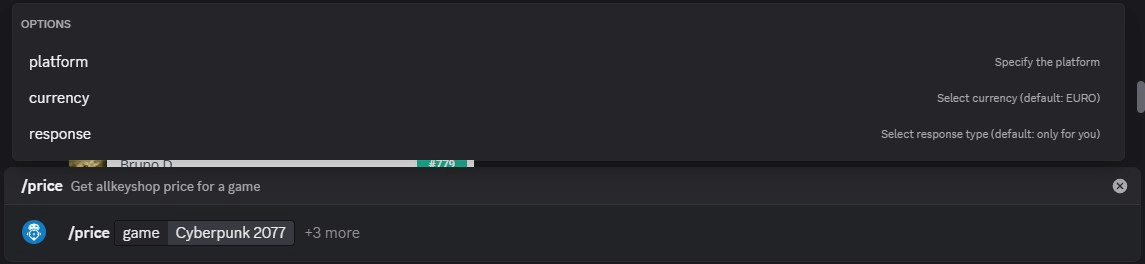
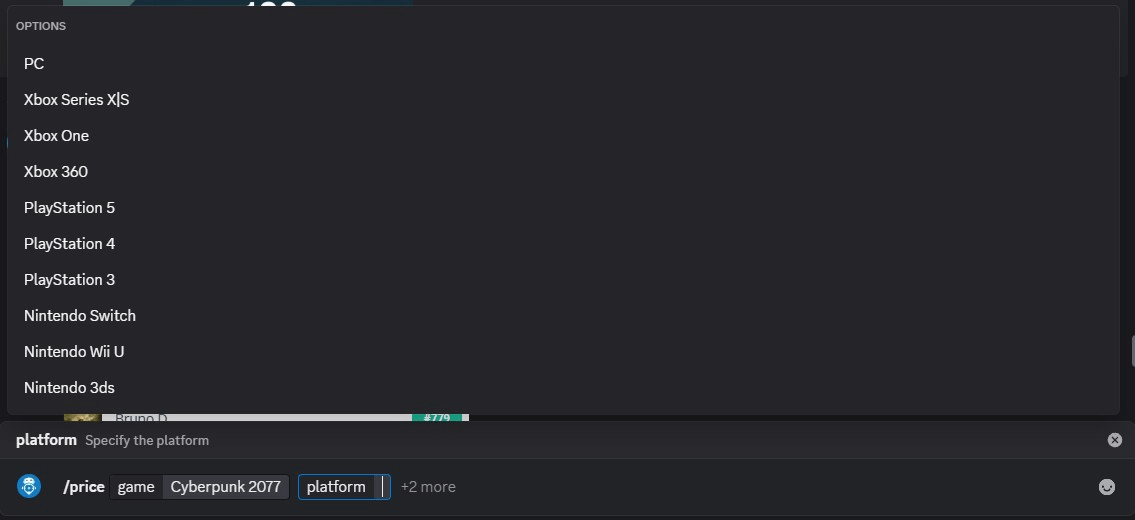
Platform Selection:
- PC (default)
- Xbox Series X|S
- Xbox One
- Xbox 360
- PlayStation 5
- PlayStation 4
- PlayStation 3
- Nintendo Switch
- Nintendo Wii U
- Nintendo 3DS
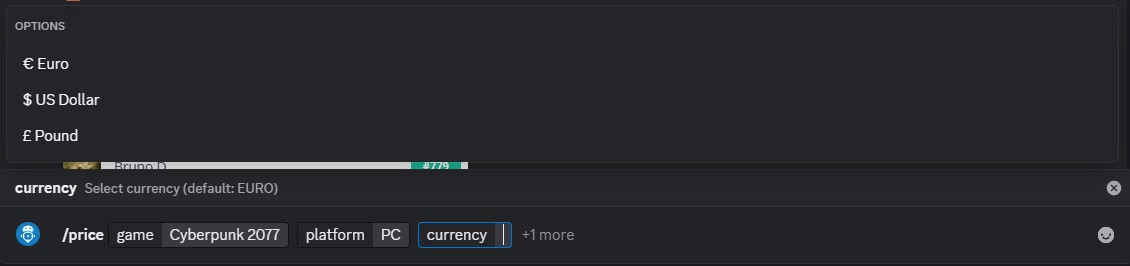
Currency Selection:
- € Euro (default)
- $ US Dollar
- £ Pound
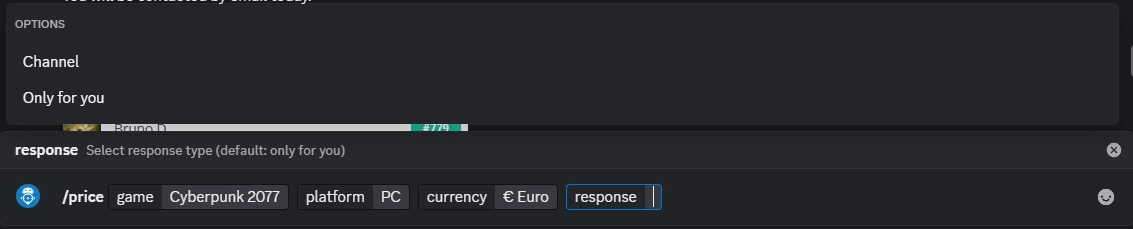
Response Type:
- Only for you (default) - Private response only you can see
- Channel - Public response everyone in the channel can see
Step 4: Execute the Command
Press Enter to send the command. You'll see a "Serving your request... please wait!" message while the bot searches.

Step 5: View Results
The bot will update the message with either:
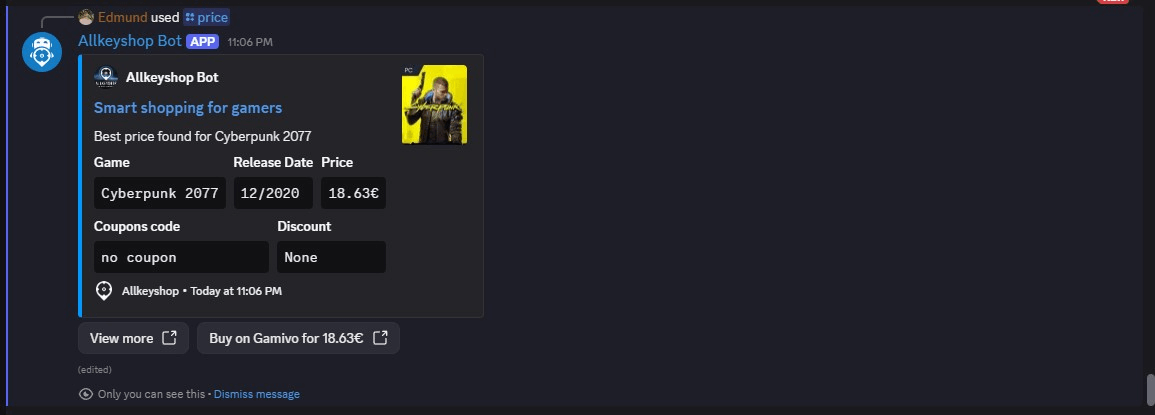
- Game pricing information with purchase options
- A "no results found" message if the game wasn't found
Tips for Best Results
- Use exact game titles when possible for more accurate results
- Try variations of the game name if no results are found
- Specify the platform to get platform-specific pricing
- Check coupon codes - they can provide additional savings
- Use "Only for you" response to avoid spamming the channel while browsing
Troubleshooting
- No results found: Try different variations of the game name or check spelling
- Command not responding: The bot may be experiencing high traffic - wait a moment and try again
- Wrong platform prices: Make sure you've selected the correct platform option
This command is powered by Allkeyshop's API and helps you find the best gaming deals across multiple retailers.


